Configuration and Options
In ASP.NET Core template projects, there are usually two configuration files: appsettings.json and appsettings.Development.json. Through these two files we can configure things such as the startup port of the Web application and whether HTTPS is enabled. Most third‑party frameworks also support configuration through these JSON files.
ASP.NET Core applications support loading configuration from multiple sources such as JSON files, XML files, and environment variables into memory by default. In microservice applications, a remote configuration center is often used to store configuration so it can be dynamically updated in the running program. Regardless of the type of configuration source, it only needs to provide extension methods for IConfigurationBuilder to developers. Developers do not need to care about the implementation details of the configuration source itself.
Microsoft.Extensions.Configuration.Abstractions defines a unified interface, and users only need to inject the IConfiguration service to dynamically obtain configuration.
In real production environments, especially in microservice scenarios, we often need real‑time configuration updates. Service instances are required to use a centralized configuration center so that once a configuration is modified, all instances update simultaneously. A configuration center can manage the configuration of multiple services and isolate configurations for different environments such as development and testing.
In this chapter, the author will introduce configuration and options in .NET. After learning the usage methods and principles, we will also demonstrate how to develop a configuration center using SignalR. Whether using a console application or a desktop program such as WPF, we can achieve the same configuration usage experience as in ASP.NET Core.
In this section, we will implement two practice projects:
- The first project reads configuration from a file and updates the configuration in memory in real time after the file changes.
- The second project implements a configuration center that can update remote configuration to the local machine.
Configuration
Create a console program and reference the Microsoft.Extensions.Configuration library. We can use the ConfigurationBuilder class to construct configuration providers and import configuration from various data sources through extension packages.
Currently, Microsoft officially provides the following types of configuration source extension methods:
- In‑memory key‑value collections
- Configuration files such as JSON, XML, YAML
- Environment variables and command‑line parameters
Regardless of the data source, when imported into memory they all appear as string key‑value pairs.
To obtain configuration from a JSON file, you need to reference the Microsoft.Extensions.Configuration.Json package.
Create a JSON file in the project root directory with the following content:
{
"test":"配置"
}
Then import the configuration from JSON.
var config = new ConfigurationBuilder()
    .AddJsonFile("test.json")
    .Build();
string test = config["test"];
Console.WriteLine(test);
If the configuration file is not in the root directory, you can use SetBasePath() to define the path.
var config = new ConfigurationBuilder()
    .SetBasePath("E:\\test\\aaa")
    .AddJsonFile("test.json")
    .Build();
In addition, the JSON extension listens for file changes by default. If the file is modified, the configuration will be reloaded into memory.
config.AddJsonFile("appsettings.json",
    optional: true,
    reloadOnChange: true);
To import configuration from a key‑value collection, the example is as follows:
var dic = new Dictionary<string, string>()
{
    ["test"] = "配置"
};
var config = new ConfigurationBuilder()
    .AddInMemoryCollection(dic)
    .Build();
string test = config["test"];
Common configuration import extension methods include:
builder.Configuration
    .AddCommandLine(...)
    .AddEnvironmentVariables(...)
    .AddIniFile(...)
    .AddIniStream(...)
    .AddInMemoryCollection(...)
    .AddJsonFile(...)
    .AddJsonStream(...)
    .AddKeyPerFile(...)
    .AddUserSecrets(...)
    .AddXmlFile(...)
    .AddXmlStream(...);
Observing the AddInMemoryCollection() extension method shows that it essentially creates a MemoryConfigurationSource instance and adds it to IConfigurationBuilder.
public static IConfigurationBuilder AddInMemoryCollection(this IConfigurationBuilder configurationBuilder)
{
    ThrowHelper.ThrowIfNull(configurationBuilder);

    configurationBuilder.Add(new MemoryConfigurationSource());
    return configurationBuilder;
}
If we want to customize a data source, we need to implement the IConfigurationSource and IConfigurationProvider interfaces.
IConfigurationSource is used to create the configuration provider, and IConfigurationProvider is used to obtain configuration strings through keys.
public interface IConfigurationSource
{
    IConfigurationProvider Build(IConfigurationBuilder builder);
}
public interface IConfigurationProvider
{
    bool TryGet(string key, out string? value);
    void Set(string key, string? value);
    IChangeToken GetReloadToken();
    void Load();
    IEnumerable<string> GetChildKeys(IEnumerable<string> earlierKeys, string? parentPath);
}
Reading Configuration
In ASP.NET Core projects, there is usually an appsettings.json file whose default content looks like this:
{
  "Logging": {
    "LogLevel": {
      "Default": "Information",
      "Microsoft": "Warning",
      "Microsoft.Hosting.Lifetime": "Information"
    }
  }
}
Because configuration in memory is stored as key‑value pairs, we can use the : symbol to access the next level of child configuration.
var config = new ConfigurationBuilder()
    .AddJsonFile("appsettings.json")
    .Build();

string test = config["Logging:LogLevel:Default"];
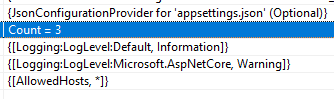
When searching for Logging:LogLevel:Default, it does not first locate Logging and then continue to search under LogLevel. Instead, the entire string Logging:LogLevel:Default is used directly as the Key to query the corresponding Value from the configuration dictionary.
"Logging:LogLevel:Default" = "Information"
"Logging:LogLevel:Microsoft" = "Warning"
Through JSON configuration files, we can easily construct hierarchical configuration structures. If you want to store them in a dictionary, you can use the form "{k1}:{k2}". For example:
var dic = new Dictionary<string, string>()
{
    ["testParent:Child1"] = "6",
    ["testParent:Child2"] = "666"
};
var config = new ConfigurationBuilder()
    .AddInMemoryCollection(dic)
    .Build().GetSection("testParent");

string test = config["Child1"];
If you only want to obtain the configuration under the LogLevel section in the JSON file, you can use the GetSection() method to obtain an IConfigurationSection object. This filters all configurations starting with the current string, so next time you use them you don’t need to provide the full key.
// json:
{
  "Logging": {
    "LogLevel": {
      "Default": "Information",
      "Microsoft.AspNetCore": "Warning"
    }
  },
  "AllowedHosts": "*"
}

// C#
varconfig = new ConfigurationBuilder()
    .AddJsonFile("appsettings.json")
    .Build();

IConfigurationSection section = config.GetSection("Logging:LogLevel");
string test = section["Default"];
However, reading configuration like this is inconvenient. We can use the Microsoft.Extensions.Configuration.Binder library, which contains many extension methods that help convert configuration strings into strong types.
// json:
{
  "test": {
    "Index": 1
  }
}

// C#:
public class Test
{
    public int Index { get; set; }
}

var config = new ConfigurationBuilder()
    .AddJsonFile("test.json")
    .Build();
var section = config.GetSection("test");
var o = section.Get<Test>();
Even if the source data does not have a hierarchical structure, we can still use Get<>() to map configuration to an object.
public class TestOptions
{
    public string A { get; set; }
    public string B { get; set; }
    public string C { get; set; }
}
var dic = new Dictionary<string, string>()
{
    ["A"] = "6",
    ["B"] = "66",
    ["C"] = "666"
};
TestOptions config = new ConfigurationBuilder()
    .AddInMemoryCollection(dic)
    .Build().Get<TestOptions>();
Configuration Interception
Sometimes configuration imported from a data source is provided by third‑party extensions, and some configuration values cannot be modified directly. Since all configuration is stored in memory as key‑value pairs, we can attempt to solve the problem by adding configuration key‑value pairs.
For example, in Serilog configuration, Serilog can be configured to write logs to files through configuration files. We may need to determine the log storage location at runtime.
public static void DynamicLog(this IServiceCollection services, string customPath)
{
    var configuration = services!.BuildServiceProvider().GetRequiredService<IConfiguration>();

    // Find node
    var fileName = configuration.AsEnumerable()
        .Where(x => x.Key.StartsWith("Serilog:WriteTo") && x.Key.EndsWith("Name") && x.Value!.Equals("File")).FirstOrDefault();

    // Serilog:WriteTo:0:Name
    if (!string.IsNullOrEmpty(fileName.Value))
    {
        var key = fileName.Key.Replace("Name", "Args:path");
        var path = Path.Combine(customPath, "log.txt");
        configuration[key] = path;
    }
}
Configuration Priority
In ASP.NET Core, during development we use the configuration files appsettings.json and appsettings.Development.json. Each of these files has its own IConfigurationSource and IConfigurationProvider.
At runtime, the configuration in appsettings.Development.json overrides the configuration in appsettings.json.
This is actually determined by the injection order of configuration sources. For example, we can manually inject multiple JSON configuration files:
var configuration = new ConfigurationBuilder()
.AddJsonFile(path: "appsettings.json")
.AddJsonFile(path: "appsettings.Development.json")
This configuration will contain two configuration sources:
// appsettings.json
JsonConfigurationSource
// appsettings.Development.json
JsonConfigurationSource
When searching for configuration, the system searches the Providers in reverse order. It first searches in appsettings.Development.json, and once a match is found, it immediately returns.
Therefore, when we need to use a custom configuration provider, we can add our provider at the end so that our custom provider has the highest priority.
Options
In ASP.NET Core, many middleware configurations are passed through Options. For example, setting the maximum uploaded form file size to 30MB.
// Form configuration
builder.Services.Configure<FormOptions>(options =>
{
    // Maximum uploaded file size: 30MB
    options.MultipartBodyLengthLimit = 31_457_280;
});
The advantage of this approach is that when using configuration we can directly use strong types without worrying about how to retrieve configuration from IConfiguration.
If we want to obtain TestOptions, we retrieve it through IOptions<TestOptions> instead of directly getting the TestOptions service.
private readonly TestModel _options;
public TestController(IOptions<FormOptions> options)
{
    _options = options.Value;
}
The most important difference between configuration and options is that configuration is used for the entire application and stores information as key‑value pairs, while options provide parameters for specific modules and use strong types.
。
The sample project is in Demo3.Options
We create a console project and introduce the following packages:
	<ItemGroup>
		<PackageReference Include="Microsoft.Extensions.Configuration" Version="7.0.0" />
		<PackageReference Include="Microsoft.Extensions.Configuration.Json" Version="7.0.0" />
		<PackageReference Include="Microsoft.Extensions.DependencyInjection" Version="7.0.0" />
		<PackageReference Include="Microsoft.Extensions.Options.ConfigurationExtensions" Version="7.0.0" />
	</ItemGroup>
Add a test.json file with the following content:
{
  "Title": "Test",
  "Name": "Test Test"
}
Then create a corresponding model class:
    public class TestOptions
    {
        public string Title { get; set; }
        public string Name { get; set; }
    }
There are three main option interfaces:
IOptions<TOptions>IOptionsSnapshot<TOptions>IOptionsMonitor<TOptions>
.NET 8 introduces some new changes.
Example usage is as follows:
        static void Main(string[] args)
        {
            var services = new ServiceCollection();
            var configuration = new ConfigurationBuilder()
                .AddJsonFile("test.json", optional: true, reloadOnChange: true)
                .Build();
            services.AddSingleton<IConfiguration>(configuration);

            services.AddOptions<TestOptions>().Bind(configuration);
            // services.Configure<TestOptions>(name: "", configuration);
            // Or use the Microsoft.Extensions.Options.ConfigurationExtensions package
            // services.Configure<TestOptions>(configuration);

            var ioc = services.BuildServiceProvider();
            var to1 = ioc.GetRequiredService<IOptions<TestOptions>>();
            var to2 = ioc.GetRequiredService<IOptionsSnapshot<TestOptions>>();
            var to3 = ioc.GetRequiredService<IOptionsMonitor<TestOptions>>();
            to3.OnChange(s =>
            {
                Console.WriteLine($"Value before change: {s.Name}");
            });
            while (true)
            {
                Console.WriteLine($"IOptions: {to1.Value.Name}");
                Console.WriteLine($"IOptionsSnapshot: {to2.Value.Name}");
                Console.WriteLine($"IOptionsMonitor: {to3.CurrentValue.Name}");
                Thread.Sleep(1000);
            }
        }
We can manually modify the test.json file and observe the console output.
All three approaches can retrieve options. The difference between them lies in lifecycle and file monitoring.
ASP.NET Core source code:
            services.TryAdd(ServiceDescriptor.Singleton(typeof(IOptions<>), typeof(UnnamedOptionsManager<>)));
            services.TryAdd(ServiceDescriptor.Scoped(typeof(IOptionsSnapshot<>), typeof(OptionsManager<>)));
            services.TryAdd(ServiceDescriptor.Singleton(typeof(IOptionsMonitor<>), typeof(OptionsMonitor<>)));
            services.TryAdd(ServiceDescriptor.Transient(typeof(IOptionsFactory<>), typeof(OptionsFactory<>)));
            services.TryAdd(ServiceDescriptor.Singleton(typeof(IOptionsMonitorCache<>), typeof(OptionsCache<>)));
IOptions<TOptions> has the following characteristics:
Registered as a singleton and can be injected into any service lifetime.
It does not support reading configuration data after the application starts. In other words, even if the configuration source can dynamically update, IOptions<TOptions> will not dynamically obtain the latest configuration from IConfiguration.
This means that before the application starts, the configuration file has already been read and an object (singleton instance) has been created. Of course, modifying the configuration file (.json) later will not affect this object.
Documentation explanation: By using IOptionsSnapshot<TOptions>, options are computed once per request when accessing and caching options within the request lifetime.
The lifetime scope of IOptionsSnapshot is scoped, meaning it is valid within a request cycle, while IOptionsMonitor is a singleton but can listen for configuration changes.
Since IOptionsSnapshot is updated for every request, after the configuration file changes, updates can be obtained in a timely manner.
IOptionsMonitor is slightly different. Both IOptionsSnapshot and IOptionsMonitor can detect changes in the configuration file, but IOptionsSnapshot creates a new object for each request, while within the same request context it remains the same object. IOptionsMonitor is a singleton pattern and is mainly used in combination with IConfiguration.
However, note that many ways of using IOptionsMonitor<T> are invalid. For example:
            services.Configure<TestOptions>(o =>
            {
                o.Name = new Random().Next(0, 100).ToString();
            });
            services.Configure<TestOptions>(o =>
            {
                configuration.Bind(o);
            });
Implementing a Custom Configuration Provider
In this section, the author will introduce how to write a configuration provider that imports data from a file and dynamically updates it into memory when the file changes.
The code example is in Demo4.Console.
Introduce Microsoft.Extensions.FileProviders.Physical to monitor directory and file changes.
Next we will implement reading a file with a custom configuration format. Create an env.conf file with the following content:
A:111
B:222
The configuration file uses : to separate key and value.
To implement a custom configuration provider, we first need to write a configuration source that inherits from the IConfigurationSource interface. Its interface definition is very simple:
	public interface IConfigurationSource
	{
		IConfigurationProvider Build(IConfigurationBuilder builder);
	}
Create a MyConfigurationSource type with the following code:
    public class MyConfigurationSource : IConfigurationSource
    {
        // Path of the configuration file
        public string Path { get; set; }
        // Whether to monitor file changes in real time
        public bool ReloadOnChange { get; set; }
        public IConfigurationProvider Build(IConfigurationBuilder builder)
        {
            return new MyConfigurationProvider(this);
        }
    }
Next define the configuration provider. The configuration provider needs to store configuration information and provide configuration query interfaces.
Example code:
public class MyConfigurationProvider : IConfigurationProvider
{
	private readonly MyConfigurationSource _source;
	private readonly IFileProvider _fileProvider;

	private readonly string _path;
	private readonly string _fileName;

    // Cache
	private readonly Dictionary<string, string> _cache;

	public MyConfigurationProvider(MyConfigurationSource source)
	{
		_source = source;
		_cache = new Dictionary<string, string>();

		_path = Directory.GetParent(_source.Path)!.FullName;
		_fileName = Path.GetFileName(_source.Path);

		_fileProvider = new PhysicalFileProvider(_path);
		if (_source.ReloadOnChange)
		{
            // Listen for configuration file changes
			ChangeToken.OnChange(() => _fileProvider.Watch(_fileName), async () => await ReloadFileAsync());
		}
		else
		{
			ReloadFileAsync().Wait();
		}
	}

	// Reload the configuration file into memory
	private async Task ReloadFileAsync()
	{
		using var stream = _fileProvider.GetFileInfo(_fileName).CreateReadStream();
		using var streamReader = new StreamReader(stream);
		_cache.Clear();
		while (true)
		{
			var line = await streamReader.ReadLineAsync();
			if (line == null) break;
			var kv = line.Split(':')[0..2].Select(x => x.Trim(' ')).ToArray();
			_cache.Add(kv[0], kv[1]);
		}
	}

	public IEnumerable<string> GetChildKeys(IEnumerable<string> earlierKeys, string? parentPath) => _cache.Keys;

	public IChangeToken GetReloadToken() => null;

	public void Load()
	{
		ReloadFileAsync().Wait();
	}

	public void Set(string key, string? value)
	{
		_cache[key] = value!;
	}

	public bool TryGet(string key, out string? value)
	{
		return _cache.TryGetValue(key, out value);
	}
}
Next define an extension so that external dependency injection is supported:
public static class Extensions
{
    public static IConfigurationBuilder AddEnvFile(this IConfigurationBuilder builder, string path, bool reloadOnChange = false)
    {
        var source = new MyConfigurationSource()
        {
            Path = path,
            ReloadOnChange = reloadOnChange
        };
        builder.Add(source);
        return builder;
    }
}
Then use our custom configuration provider:
	static void Main()
	{
		var configuration = new ConfigurationBuilder()
			.AddEnvFile("env.conf", true)
			.Build();
		while (true)
		{
			var value = configuration["A"];
			Console.WriteLine($"A = {value}");
			Thread.Sleep(1000);
		}
	}
After starting the program, modify the env.conf file in the program's running directory and check the console output to see whether it matches the modified file.
Implementing a Configuration Center
After understanding how configuration and options are used, as well as how to customize configuration providers, in this section we will create a configuration center service. Clients will communicate with the configuration center through SignalR, and when the configuration content in the configuration center is modified, it will automatically be pushed to the clients.
Create a new API project named Demo3.ConfigCenter and a console project named Demo3.ConfigClient.
First implement the code for the configuration center Demo3.ConfigCenter, and create a model class to store client information.
    /// <summary>
    /// Client information
    /// </summary>
    public class ClientInfo
    {
        /// <summary>
        /// SignalR connection id
        /// </summary>
        public string ConnectionId { get; set; }

        /// <summary>
        /// Application name
        /// </summary>
        public string AppName { get; set; }

        /// <summary>
        /// Namespace
        /// </summary>
        public string Namespace { get; set; }

        /// <summary>
        /// Group name
        /// </summary>
        public string GroupName => $"{AppName}-{Namespace}";

        /// <summary>
        /// Client IP address
        /// </summary>
        public string IpAddress { get; set; }
    }
Create a Hub service for SignalR communication to enable real-time communication with clients.
。
    public partial class ConfigCenterHub : Hub
    {
        // Client connection information
        private static readonly ConcurrentDictionary<string, ClientInfo> _clients = new();
        // Store the configuration of each service in memory
        private static readonly ConcurrentDictionary<string, JsonObject> _settings = new();

        private readonly IHubContext<ConfigCenterHub> _hubContext;
        public ConfigCenterHub(IHubContext<ConfigCenterHub> hubContext)
        {
            _hubContext = hubContext;
        }

        // When a client connects to the service
        public override async Task OnConnectedAsync()
        {
            ClientInfo clientnInfo = GetInfo();

            await _hubContext.Groups.AddToGroupAsync(clientnInfo.ConnectionId, clientnInfo.GroupName);
            _clients[clientnInfo.GroupName] = clientnInfo;
        }

        // When a client disconnects from the service
        public override async Task OnDisconnectedAsync(Exception? exception)
        {
            ClientInfo clientnInfo = GetInfo();

            await _hubContext.Groups.RemoveFromGroupAsync(clientnInfo.ConnectionId, clientnInfo.GroupName);
            _clients.TryRemove(clientnInfo.ConnectionId, out _);
        }

        // Get client information
        private ClientInfo GetInfo()
        {
            var feature = Context.Features.Get<IHttpConnectionFeature>();
            var httpContext = Context.GetHttpContext();

            ArgumentNullException.ThrowIfNull(feature);
            ArgumentNullException.ThrowIfNull(httpContext);

            // Query information from headers
            var appName = httpContext.Request.Headers["AppName"].FirstOrDefault();
            var namespaceName = httpContext.Request.Headers["Namespace"].FirstOrDefault();

            ArgumentNullException.ThrowIfNull(appName);
            ArgumentNullException.ThrowIfNull(namespaceName);

            var groupName = $"{appName}-{namespaceName}";

            // Get the client communication address
            var remoteAddress = feature.RemoteIpAddress;
            ArgumentNullException.ThrowIfNull(remoteAddress);
            var remotePort = feature.RemotePort;

            return new ClientInfo
            {
                ConnectionId = feature.ConnectionId,
                AppName = appName,
                Namespace = namespaceName,
                IpAddress = $"{remoteAddress.MapToIPv4().ToString()}:{remotePort}"
            };
        }

        // Client fetches configuration by itself
        public async Task<JsonObject> GetAsync()
        {
            ClientInfo clientnInfo = GetInfo();
            if(_settings.TryGetValue(clientnInfo.GroupName, out var v))
            {
                return v;
            }
            var dic = new Dictionary<string, JsonNode>().ToList();
            return new JsonObject(dic);
        }

        // Update cache
        public void UpdateCache(string appName, string namespaceName, JsonObject json)
        {
            var groupName = $"{appName}-{namespaceName}";
            _settings[groupName] = json;
        }
    }
Then register the Hub service:
... ...
builder.Services.AddSwaggerGen();

// Inject SignalR
builder.Services.AddSignalR();
builder.Services.AddScoped<ConfigCenterHub>();

var app = builder.Build();

... ...
app.MapControllers();

// Add Hub middleware
app.MapHub<ConfigCenterHub>("/config");
app.Run("http://*:5000");
Create a ConfigController controller that allows modifying the content of the configuration center through an API, and after modifying the configuration, push it to the corresponding clients.
    [ApiController]
    [Route("[controller]")]
    public class ConfigController : ControllerBase
    {
        private readonly ConfigCenterHub _configCenter;
        private readonly IHubContext<ConfigCenterHub> _hubContext;

        public ConfigController(IHubContext<ConfigCenterHub> hubContext, ConfigCenterHub configCenter)
        {
            _hubContext = hubContext;
            _configCenter = configCenter;
        }

        [HttpPost("update")]
        public async Task<string> Update(string appName, string namespaceName, [FromBody] JsonObject json)
        {
            var groupName = $"{appName}-{namespaceName}";
            _configCenter.UpdateCache(appName, namespaceName, json);
            await _hubContext.Clients.Group(groupName).SendAsync("Publish", json);
            return "Configuration updated";
        }
    }
Next is the client-side part.
When the program starts, it reads the tmp_config.json file in the directory and injects it into the configuration. If the file does not exist, it will be created. Then the built-in JsonConfigurationProvider of the framework is used to dynamically monitor changes to the JSON file, reducing our code workload. For real-time monitoring of JSON file changes and parsing JSON, we can use the official JsonConfigurationSource, so we do not need to write a new implementation ourselves.
Then SignalR is used to communicate with the configuration center, writing the content from the configuration center into the temporary file tmp_config.json. JsonConfigurationProvider will automatically load the modified JSON file into memory. Because we use a local configuration file and cache the retrieved configuration locally, the program can still start using the local cached configuration when the program starts next time or when a network failure occurs. This is also a feature implemented by many configuration centers.
In Demo3.ConfigClient, create the files OnlineConfigurationSource and OnlineConfigurationProvider, and write the following code:
    public class OnlineConfigurationSource : IConfigurationSource
    {
        /// <summary>
        /// API path to get the latest configuration
        /// </summary>
        public string URL { get; init; }
        public string AppName { get; init; }
        public string Namespace { get; init; }

        public IConfigurationProvider Build(IConfigurationBuilder builder)
        {
            return new OnlineConfigurationProvider(this, builder);
        }
    }
Then implement a configuration provider that communicates with the Hub server in real time and updates the content into the tmp_config.json file.
    public class OnlineConfigurationProvider : IConfigurationProvider, IDisposable
    {
        private const string TmpFile = "tmp_config.json";
        private readonly string _jsonPath;

        private readonly OnlineConfigurationSource _configurationSource;
        private readonly JsonConfigurationSource _jsonSource;
        private readonly IConfigurationProvider _provider;
        private readonly HubConnection _connection;

        public OnlineConfigurationProvider(OnlineConfigurationSource configurationSource, IConfigurationBuilder builder)
        {
            // Use the built-in JsonConfigurationSource to dynamically obtain JSON file content
            var curPath = Directory.GetParent(typeof(OnlineConfigurationProvider).Assembly.Location).FullName;
            _jsonPath = Path.Combine(curPath, TmpFile);
            if (!File.Exists(TmpFile)) File.WriteAllText(_jsonPath, "{}");

            _configurationSource = configurationSource;
            _jsonSource = new JsonConfigurationSource()
            {
                Path = TmpFile,
                ReloadOnChange = true,
            };
            _provider = _jsonSource.Build(builder);

            // Configure SignalR communication and write new content into the JSON file
            _connection = new HubConnectionBuilder()
                .WithUrl(_configurationSource.URL, options =>
                {
                    options.Headers.Add("AppName", _configurationSource.AppName);
                    options.Headers.Add("Namespace", _configurationSource.Namespace);
                })
                .WithAutomaticReconnect()
                .Build();

            _connection.On<JsonObject>("Publish", async (json) =>
            {
                await SaveJsonAsync(json);
            });

            _connection.StartAsync().Wait();
            var json = _connection.InvokeAsync<JsonObject>("GetAsync").Result;
            SaveJsonAsync(json).Wait();
        }

        private async Task SaveJsonAsync(JsonObject json)
        {
            // Clear the file and rewrite the content each time
            using FileStream fs = new FileStream(_jsonPath, FileMode.Truncate, FileAccess.ReadWrite);
            await System.Text.Json.JsonSerializer.SerializeAsync(fs, json);
            Console.WriteLine($"Configuration updated: {System.Text.Json.JsonSerializer.Serialize(json)}");
        }

        private bool _disposedValue;
        ~OnlineConfigurationProvider() => Dispose(false);
        public void Dispose()
        {
            Dispose(true);
            GC.SuppressFinalize(this);
        }

        protected virtual void Dispose(bool disposing)
        {
            if (!_disposedValue)
            {
                if (disposing)
                {
                    _connection.DisposeAsync();
                }
                _disposedValue = true;
            }
        }

        public IEnumerable<string> GetChildKeys(IEnumerable<string> earlierKeys, string? parentPath) => _provider.GetChildKeys(earlierKeys, parentPath);
        public IChangeToken GetReloadToken() => _provider.GetReloadToken();
        public void Load() => _provider.Load();
        public void Set(string key, string? value) => _provider.Set(key, value);
        public bool TryGet(string key, out string? value) => _provider.TryGet(key, out value);
    }
Write an extension method to configure the Hub service.
。
    public static class Extensions
    {
        // Add remote configuration
        public static IConfigurationBuilder AddReomteConfig(this IConfigurationBuilder builder, string url, string appName, string @namespace)
        {
            var source = new OnlineConfigurationSource()
            {
                URL = url,
                AppName = appName,
                Namespace = @namespace
            };
            builder.Add(source);
            return builder;
        }
    }
Use the configuration center service:
    internal class Program
    {
        static void Main(string[] args)
        {
            Thread.Sleep(5000);
            var builder = new ConfigurationBuilder()
                .AddReomteConfig("http://127.0.0.1:5000/config", "myapp", "dev");

            var config = builder.Build();
            while (true)
            {
                Console.WriteLine(config["Name"]);
                Thread.Sleep(1000);
            }
        }
    }
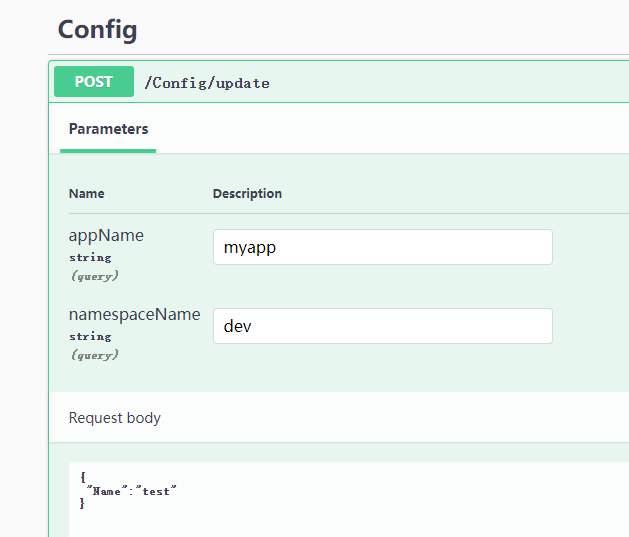
Start both the configuration center and the client at the same time, open the Swagger address of the configuration center, modify and push the new configuration to the client.

文章评论