EasyTouch (et)
A cross-platform system automation tool supporting Windows, Linux, and macOS. It provides two usage modes: CLI command line and MCP server. Features include mouse and keyboard control, screenshots, window management, system information queries, browser automation, and more.
Currently:
- [x] Windows
- [x] Linux
- [ ] MAC (device verification functionality is currently missing)
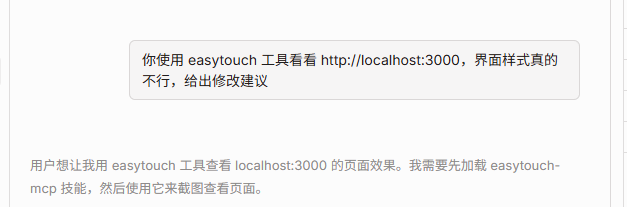
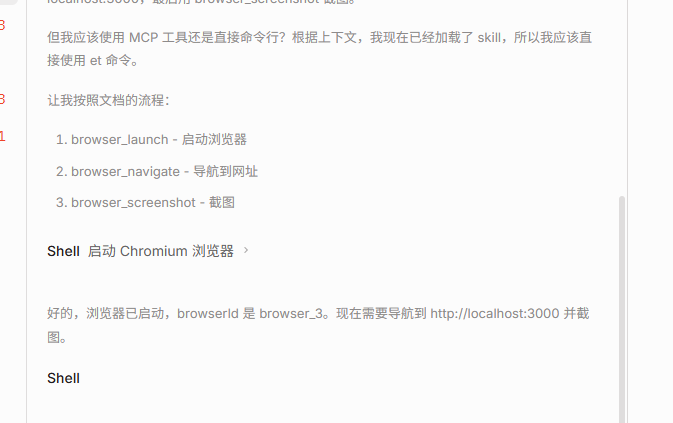
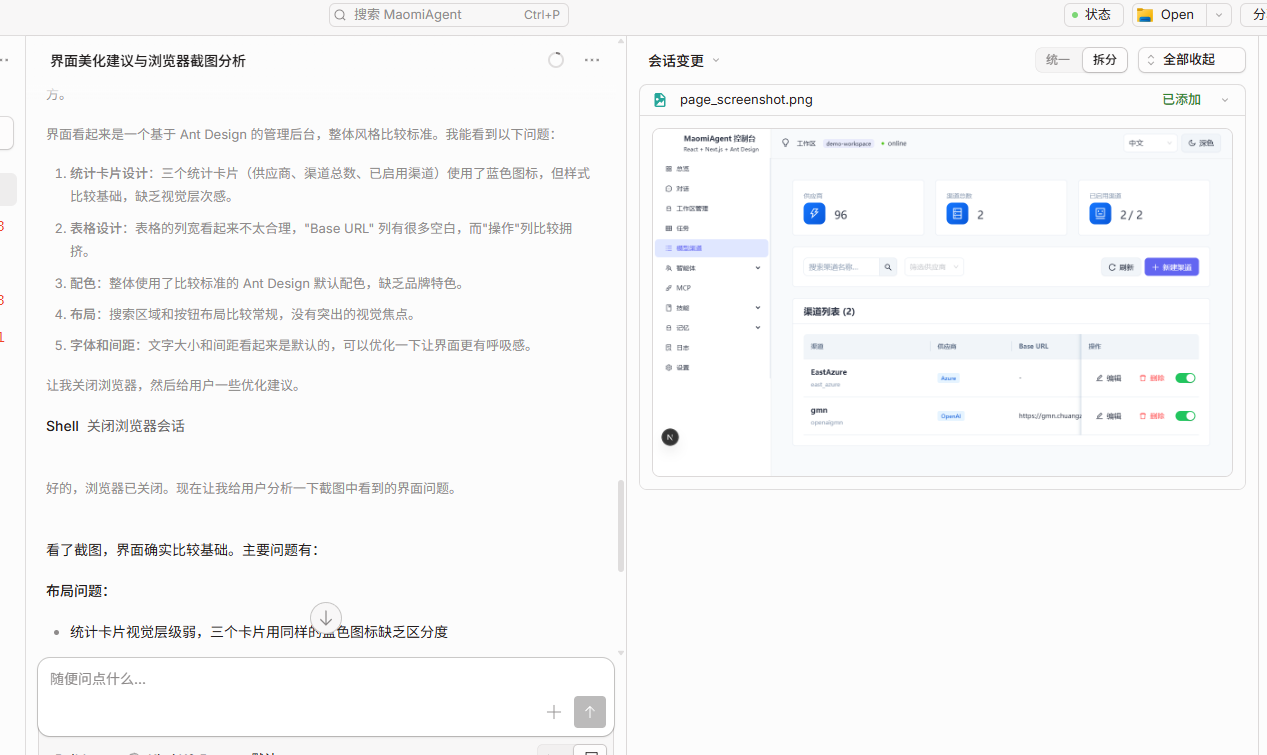
Many people use various AI coding tools to write web pages. Have you often found that the pages generated by AI are never quite satisfactory and differ greatly from the design mockups? This is because AI can only improve code by reading and writing code—it cannot see the interface the way humans can through their senses.
So EasyTouch gives AI hands and eyes.
Feature Overview
| Module | Features |
|------|------|
| 🖱️ Mouse Control | Move, click, scroll, get position |
| ⌨️ Keyboard Control | Key press, key combinations, text input |
| 📷 Screen Operations | Screenshots, pixel color retrieval, multi‑monitor support |
| 🪟 Window Management | List, search, activate windows |
| 🖥️ System Information | CPU, memory, disk, processes |
| 📋 Clipboard | Text read/write, file list |
| 🌐 Browser Control | Launch browser, page navigation, element interaction, screenshots |
Note: On Linux, due to large differences between desktop environments, some features may not work on certain desktop systems. See the Linux environment notes for details.
Installation
# Windows
npm i easytouch-windows

# Linux
npm i easytouch-linux

# macOS
npm i easytouch-mac
Or download the executable for your platform from
https://github.com/whuanle/EasyTouch/releases
and add it to your environment variables.
Run the et --help command to test whether it works correctly:
PS E:\workspace\EasyTouch> et --help
EasyTouch Windows Automation Tool

Usage: et <command> [options]

Commands:
  mouse_move --x <n> --y <n> [--relative] [--duration <ms>]
  mouse_click [--button left|right|middle] [--double]
  mouse_position
  key_press --key <key>
  type_text --text <text> [--interval <ms>] [--human]
  screenshot [--output <path>] [--x <n>] [--y <n>] [--width <n>] [--height <n>]
  pixel_color --x <n> --y <n>
  window_list [--visible-only] [--filter <text>]
  window_find [--title <text>] [--class <name>] [--pid <n>]
  window_activate --title <text> | --handle <n>
  window_foreground
  os_info, cpu_info, memory_info, disk_list
  process_list [--filter <text>]
  clipboard_get_text, clipboard_set_text --text <text>

  help       Show this help
  version    Show version
{"success":true}
Browser Operation Support
Supported browsers: chromium / firefox / webkit / edge (edge uses the Chromium channel msedge).
Browser operations are recommended to follow a session workflow: launch first, obtain the browserId, and use that browserId for all subsequent commands.
et browser_launch --browser edge --headless false
et browser_list
# Use browserId for subsequent commands
et browser_navigate --browser-id browser_1 --url "https://example.com"
Using as Skills for AI
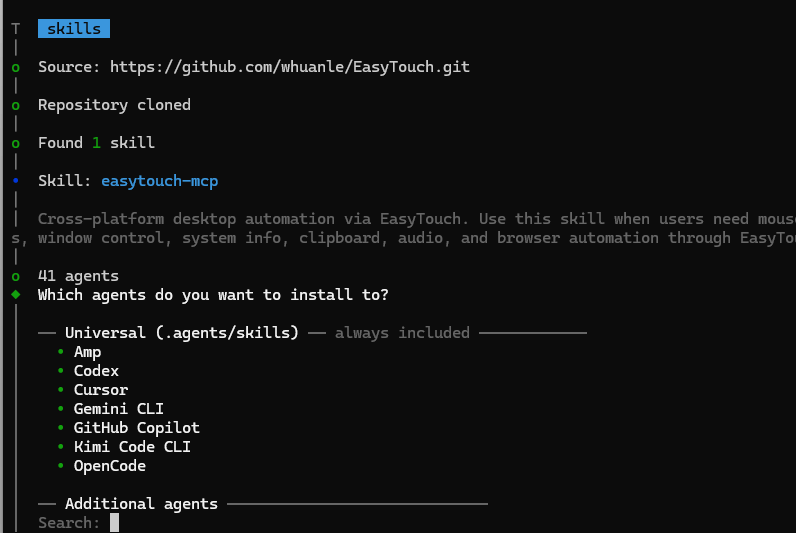
Simply run the command to install the skills.
npx skills add https://github.com/whuanle/EasyTouch
Note: the skills package does not include scripts. You need to install the tool beforehand using npm i easytouch-windows.
Using as an MCP Tool
If the tool is only intended for AI usage, using skills is recommended since configuring MCP can be somewhat more complicated.
In tools like Claude or Cursor, configuring MCP is generally similar. When EasyTouch is installed via npm/bun, the program files are located under $basedir/node_modules/easytouch-windows.
Add the following to the configuration file:
Windows
{
  "mcpServers": {
    "easytouch": {
      "command": "C:\\path\\to\\et.exe",
      "args": ["--mcp"]
    }
  }
}
NPM installation
{
  "mcpServers": {
    "easytouch": {
      "command": "npx",
      "args": ["-y", "easytouch-windows", "--mcp"]
    }
  }
}
Linux / macOS
{
  "mcpServers": {
    "easytouch": {
      "command": "/path/to/et",
      "args": ["--mcp"]
    }
  }
}
CLI Command Reference
Mouse Control
# Move mouse (absolute coordinates)
et mouse_move --x 100 --y 200

# Relative movement
t mouse_move --x 50 --y -30 --relative

# Smooth movement (500ms animation)
et mouse_move --x 100 --y 200 --duration 500

# Left click (default)
et mouse_click

# Right double-click
t mouse_click --button right --double

# Scroll up 3 steps
t mouse_scroll --amount 3

# Horizontal scrolling
t mouse_scroll --amount 3 --horizontal

# Get current position
t mouse_position
Keyboard Control
# Press a single key
t key_press --key "enter"

# Key combinations
t key_press --key "ctrl+c"
t key_press --key "alt+tab"
t key_press --key "win+d"

# Input text
t type_text --text "Hello World"

# Simulate human typing (with random intervals)
t type_text --text "Hello World" --human --interval 50
Screen Operations
# Full screen screenshot
t screenshot --output screenshot.png

# Region screenshot
t screenshot --x 100 --y 100 --width 800 --height 600 --output region.png

# Get pixel color
t pixel_color --x 100 --y 200

# List monitors
t screen_list
Window Management
# List visible windows
t window_list

# Filter by title
t window_list --filter "Chrome"

# Find window
t window_find --title "Notepad"

# Activate window
t window_activate --title "Notepad"

# Get foreground window
t window_foreground
System Information
# Operating system information
et os_info

# CPU information
et cpu_info

# Memory information
et memory_info

# Disk list
et disk_list

# Process list
et process_list --filter "chrome"

# Lock screen
et lock_screen
Clipboard
# Get text
et clipboard_get_text

# Set text
et clipboard_set_text --text "Hello World"

# Clear
et clipboard_clear

# Get file list
et clipboard_get_files
Browser Control
After launching a browser using et browser_launch --browser (in incognito mode), use et browser_list to obtain the browser instance list. You can then control the browser using different commands and close it manually or with et browser_close.
# List browser instances
et browser_list

# Launch Chromium (headless)
et browser_launch --browser chromium --headless

# Launch Edge (with UI)
et browser_launch --browser edge --headless false

# Open a page
et browser_navigate --browser-id <id> --url "https://example.com"

# Navigation controls
et browser_go_back --browser-id <id>
et browser_go_forward --browser-id <id>
et browser_reload --browser-id <id>

# Click element
et browser_click --browser-id <id> --selector "#submit"

# Fill input
et browser_fill --browser-id <id> --selector "input[name='q']" --value "EasyTouch"

# Scroll page (by pixels)
et browser_scroll --browser-id <id> --x 0 --y 800 --behavior smooth

# Select dropdown
et browser_select --browser-id <id> --selector "#city" --values "beijing"

# Upload files (comma-separated for multiple files)
et browser_upload --browser-id <id> --selector "input[type='file']" --files "a.txt,b.txt"

# Page screenshot
et browser_screenshot --browser-id <id> --output page.png --full-page true

# Execute script
et browser_evaluate --browser-id <id> --script "document.title"

# Read page information
et browser_page_info --browser-id <id>

# Cookie management
et browser_get_cookies --browser-id <id>
et browser_set_cookie --browser-id <id> --name token --value abc --domain example.com --path / --http-only true --secure true --same-site lax
et browser_clear_cookies --browser-id <id>

# Run local JS/TS Playwright test script
et browser_run_script --script-path "./tests/example.spec.ts" --browser edge --headless true

# Pass Playwright CLI parameters (CSV)
et browser_run_script --script-path "./tests/login.spec.ts" --browser chromium --extra-args "--reporter=list,--workers=1"

# Text assertion (automated testing)
et browser_assert_text --browser-id <id> --selector "h1" --expected-text "Example Domain" --exact-match true

# Close browser
et browser_close --browser-id <id>
MCP Tools
| Tool | Description |
|------|------|
| mouse_move | Move mouse |
| mouse_click | Click mouse |
| mouse_position | Get mouse position |
| key_press | Press key |
| type_text | Input text |
| screenshot | Take screenshot |
| pixel_color | Get pixel color |
| window_list | List windows |
| window_find | Find window |
| window_activate | Activate window |
| system_info | System information |
| process_list | Process list |
| clipboard_get_text | Get clipboard text |
| clipboard_set_text | Set clipboard text |
| browser_launch | Launch browser |
| browser_navigate | Page navigation |
| browser_click | Click page element |
| browser_fill | Fill input field |
| browser_find | Find page element |
| browser_get_text | Get page text |
| browser_screenshot | Browser screenshot |
| browser_evaluate | Execute page script |
| browser_wait_for | Wait for element state |
| browser_assert_text | Assert page or element text |
| browser_page_info | Get page information |
| browser_go_back / browser_go_forward / browser_reload | Page navigation control |
| browser_scroll | Page/element scrolling |
| browser_select | Dropdown selection |
| browser_upload | File upload |
| browser_get_cookies / browser_set_cookie / browser_clear_cookies | Cookie management |
| browser_run_script | Run JS/TS Playwright test script |
| browser_close | Close browser |
| browser_list | List browser instances |
For more MCP documentation see: skills/SKILLS.md
Platform Notes
Windows
- Full support for all features
- Some functions may require administrator privileges
Linux
- Officially verified environment: Ubuntu Desktop (22.04 / 24.04)
- Other distributions and desktop environments are best-effort; running the test script first is recommended
- Recommended to use in a graphical environment (preferably an X11 session)
- Some features may require sudo privileges
Dependencies for Linux (Ubuntu) can be installed manually:
# Basic dependencies (recommended)
sudo apt install xdotool xclip xsel imagemagick gnome-screenshot

# Wayland additional dependencies (optional)
sudo apt install ydotool wl-clipboard grim
After installation, you can run the script to test compatibility:
node scripts/test-easytouch.js --cli-only --verbose
macOS
- Requires accessibility permissions (System Settings → Privacy & Security → Accessibility)
- Screenshot functionality requires screen recording permission
License
MIT License

文章评论